
How PlayOps works
PlayOps runs the front desk of a play area from one screen — the billing, timers and receipts in one place. Here is a normal day, step by step.
10:00
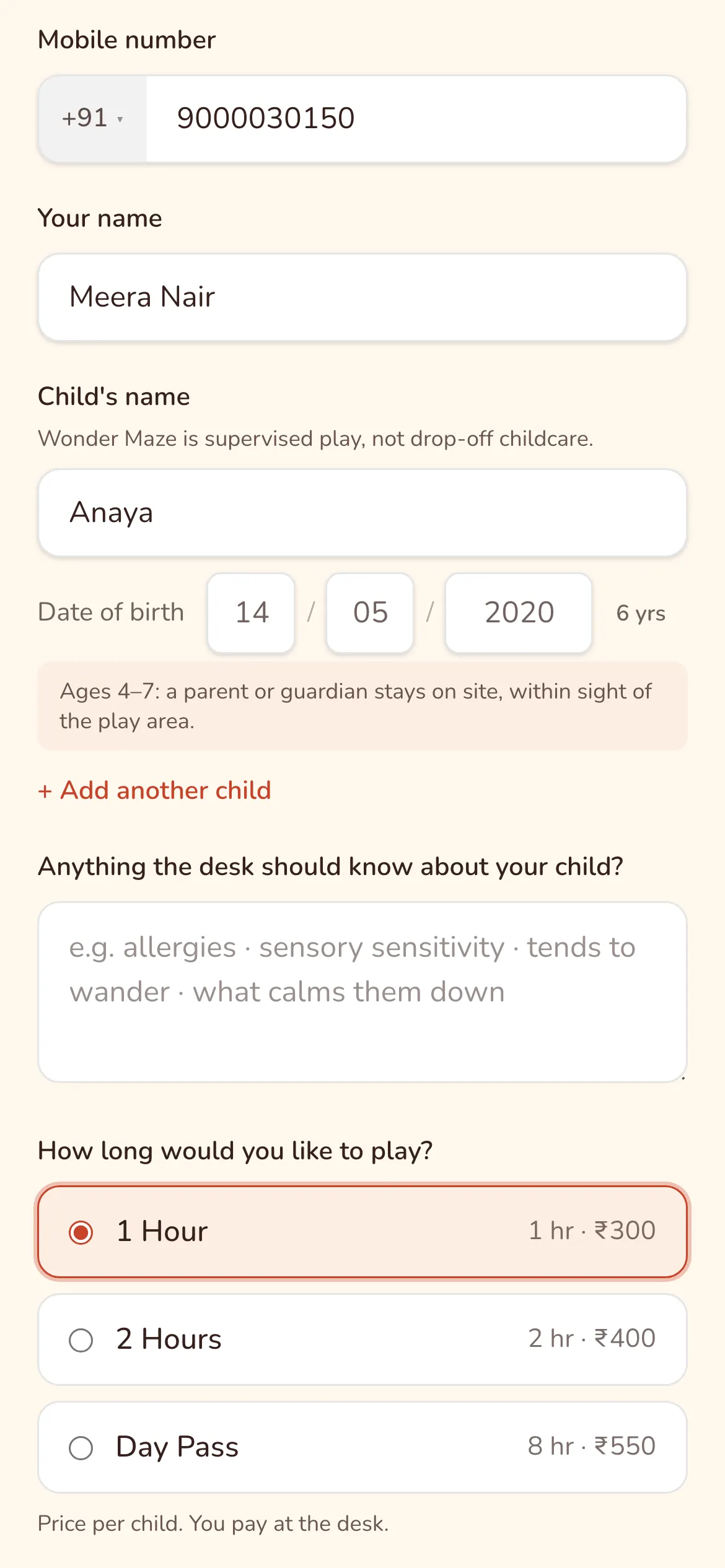
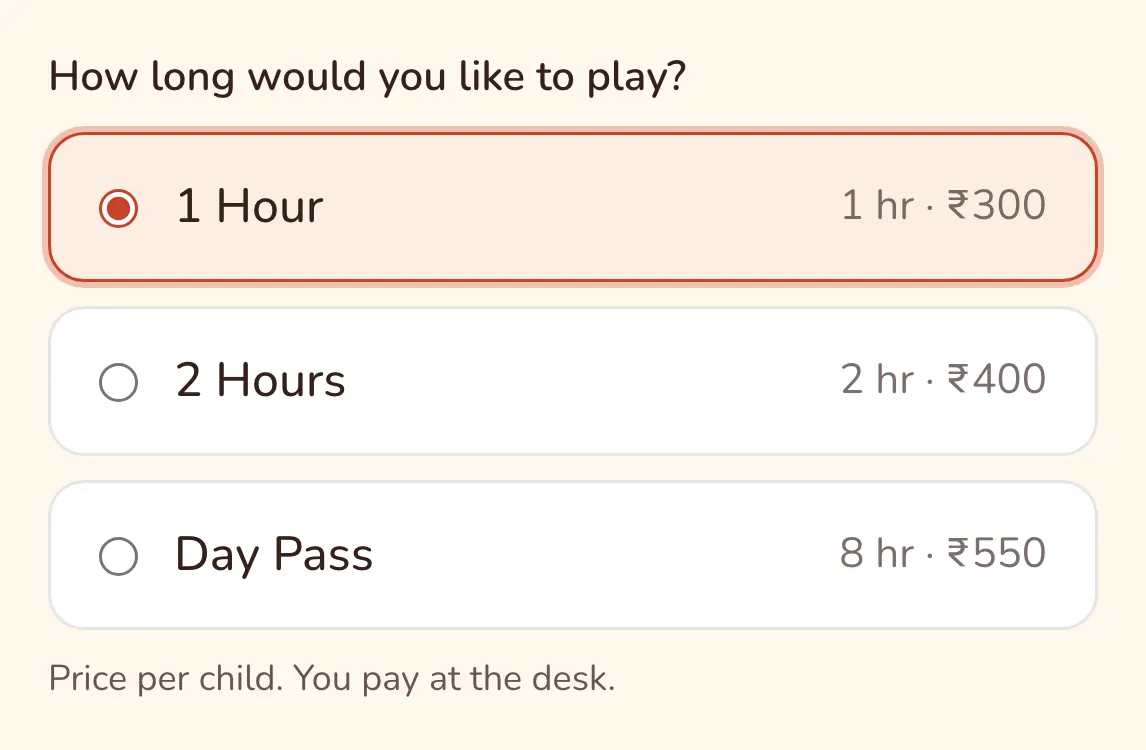
A child arrives: admit in one tap
Pick the child's package — one hour, two hours, a pass or a party. Type the child's name and the parent's phone the first time; next visit, the family comes up when you search. The timer starts when you admit.
11:02
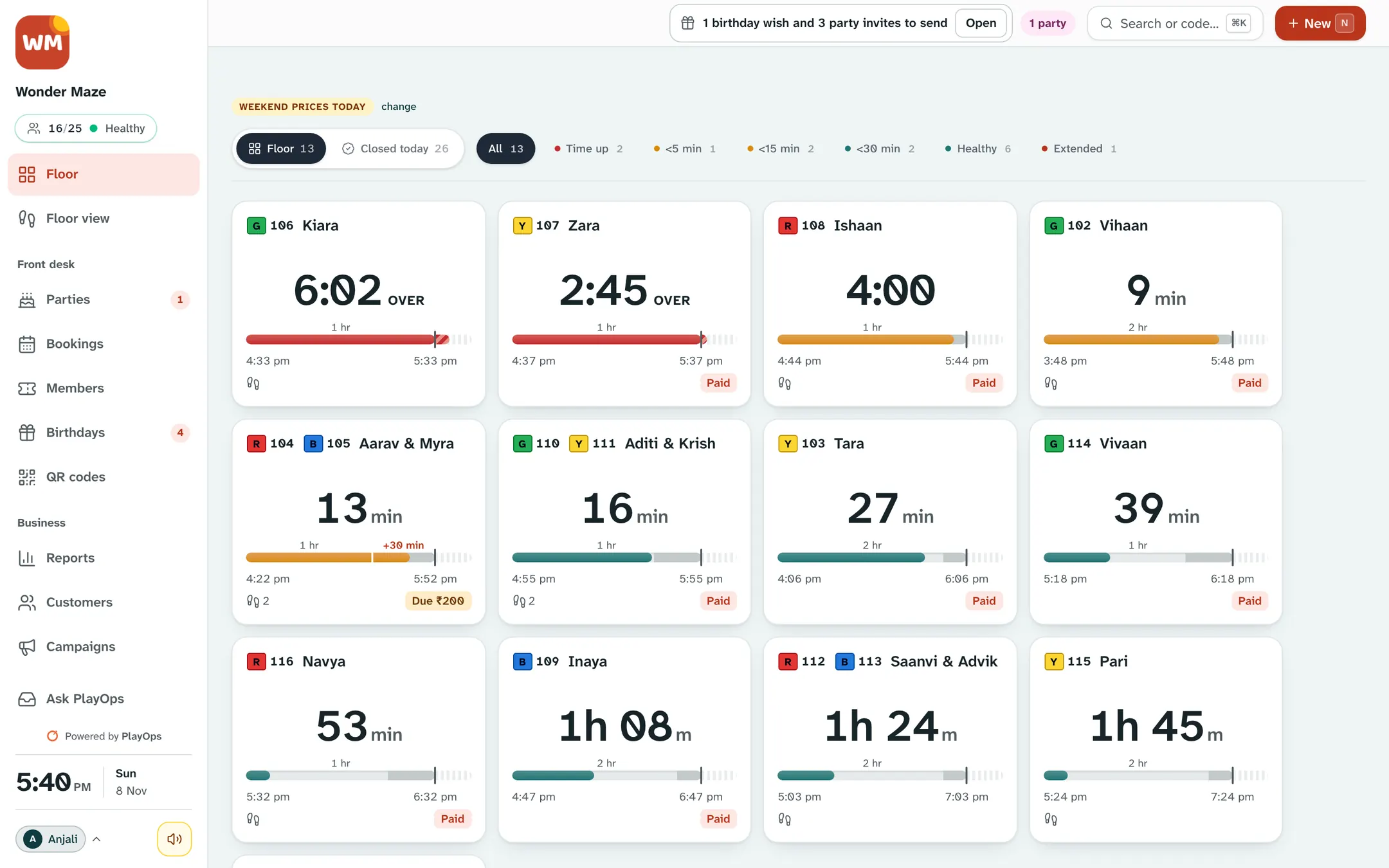
Every child has a live timer
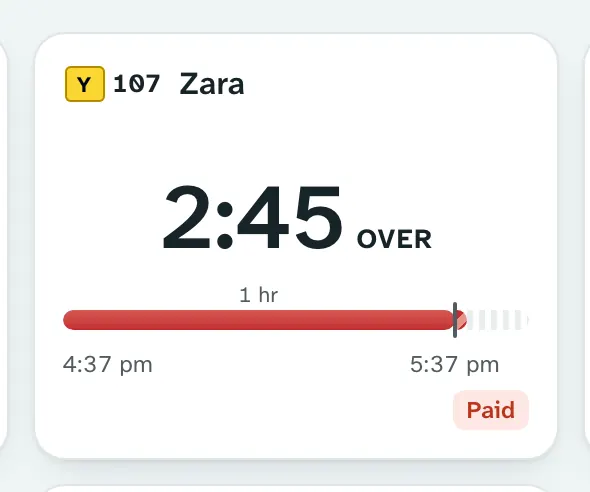
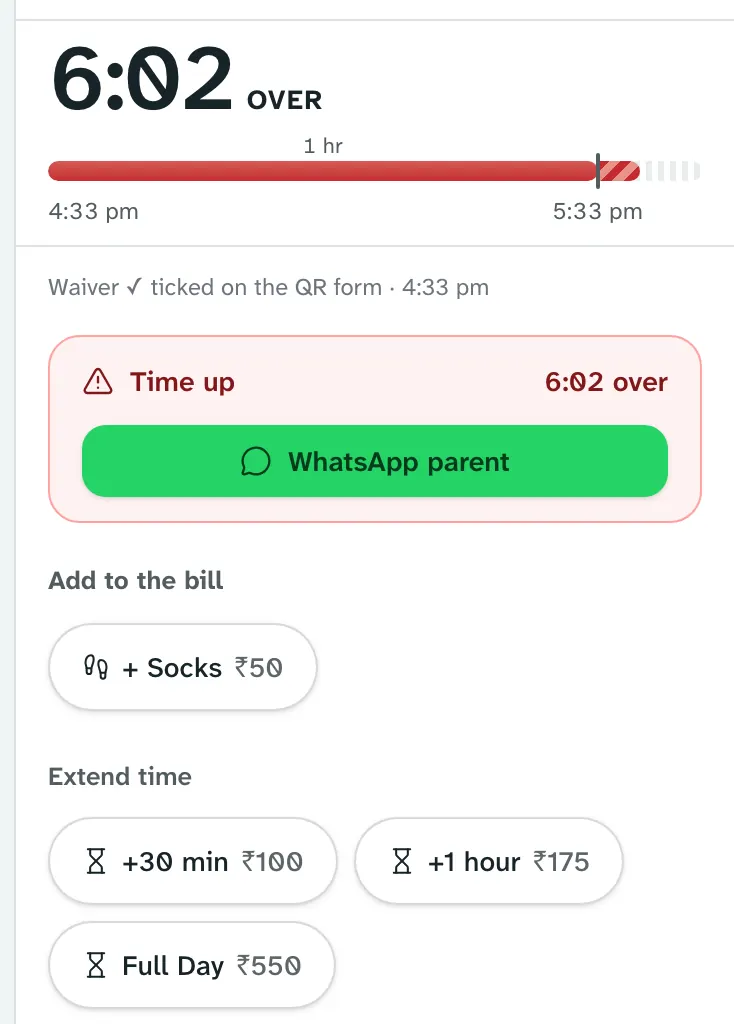
The floor screen shows every child inside and how much time is left. When a child's time is ending, the card tells the desk. At time-up, the desk hears a chime. Nobody has to watch the clock or keep a paper register.
11:03
Extend when the parent asks
A parent wants 30 more minutes? Tap extend. The bill updates with your own extra-time price, so the desk never has to work it out.
11:05
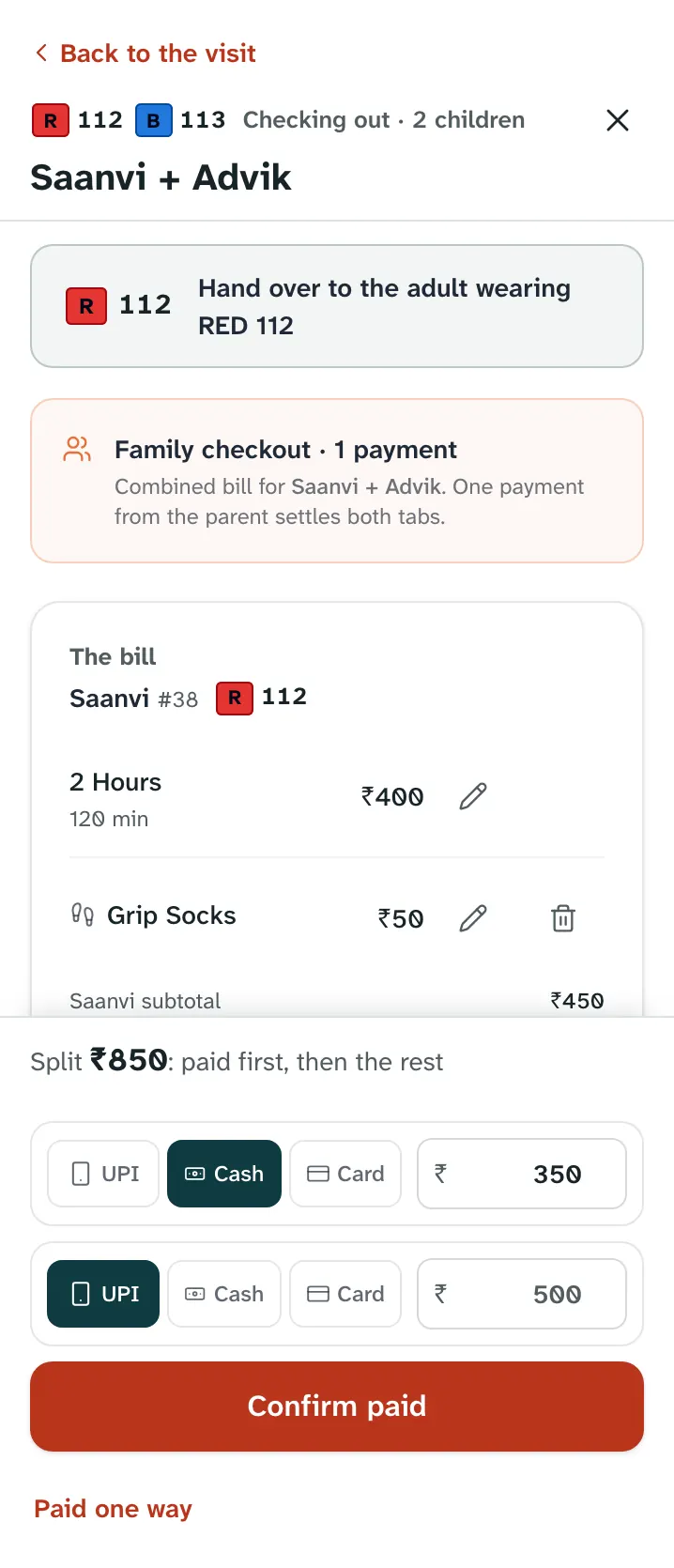
Collect: UPI, cash, card or split
At checkout, socks, snacks and other add-ons go on the same bill. PlayOps asks how the parent paid — UPI, cash, card or a split of two. The parent pays you the way they always have; PlayOps only records it.
11:06
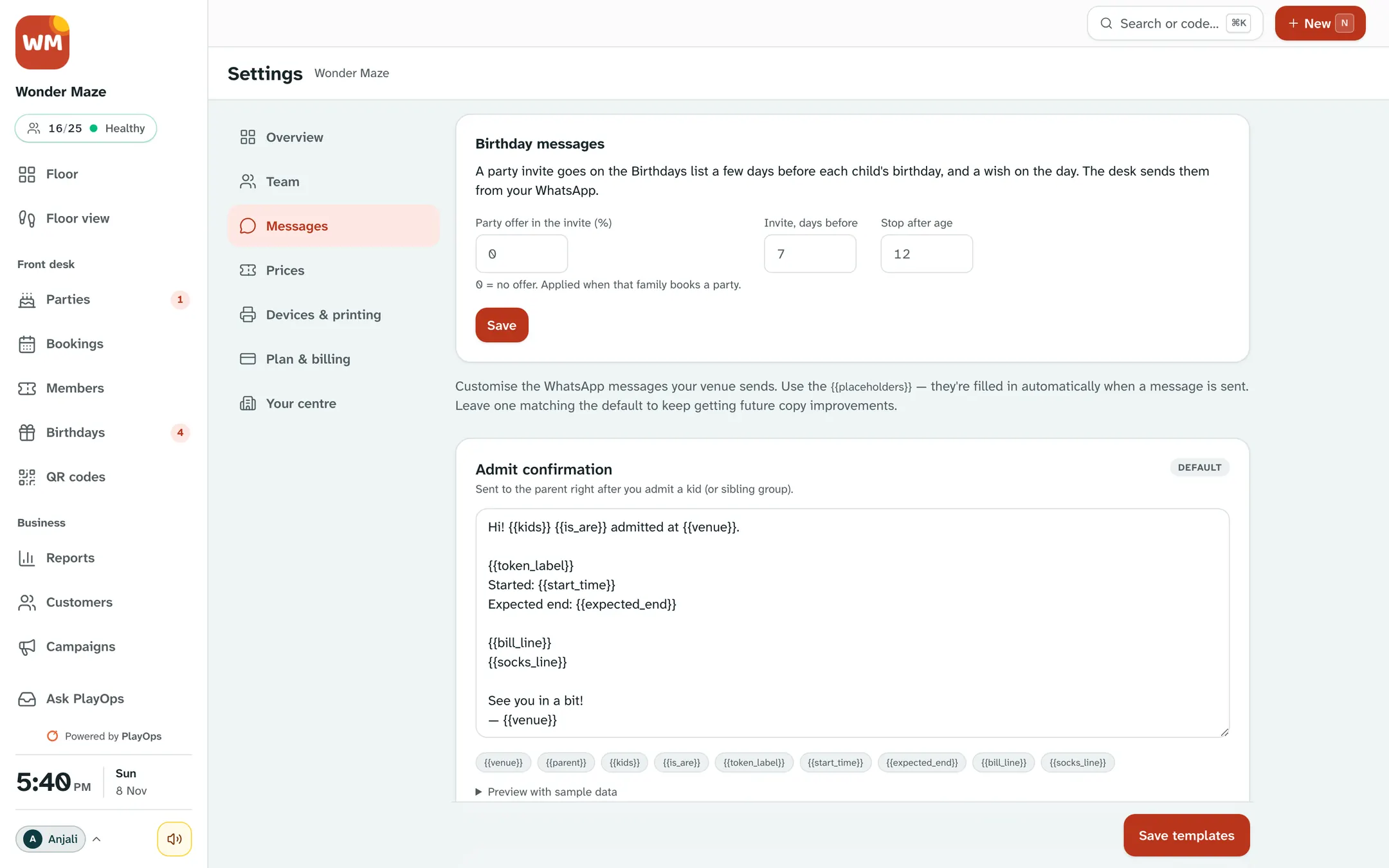
Tell the parent on WhatsApp
PlayOps writes the message — welcome, time ending soon, time-up, the receipt. One tap opens WhatsApp with the message ready, and your staff send it from your own WhatsApp number. No extra cost per message.

Closing time
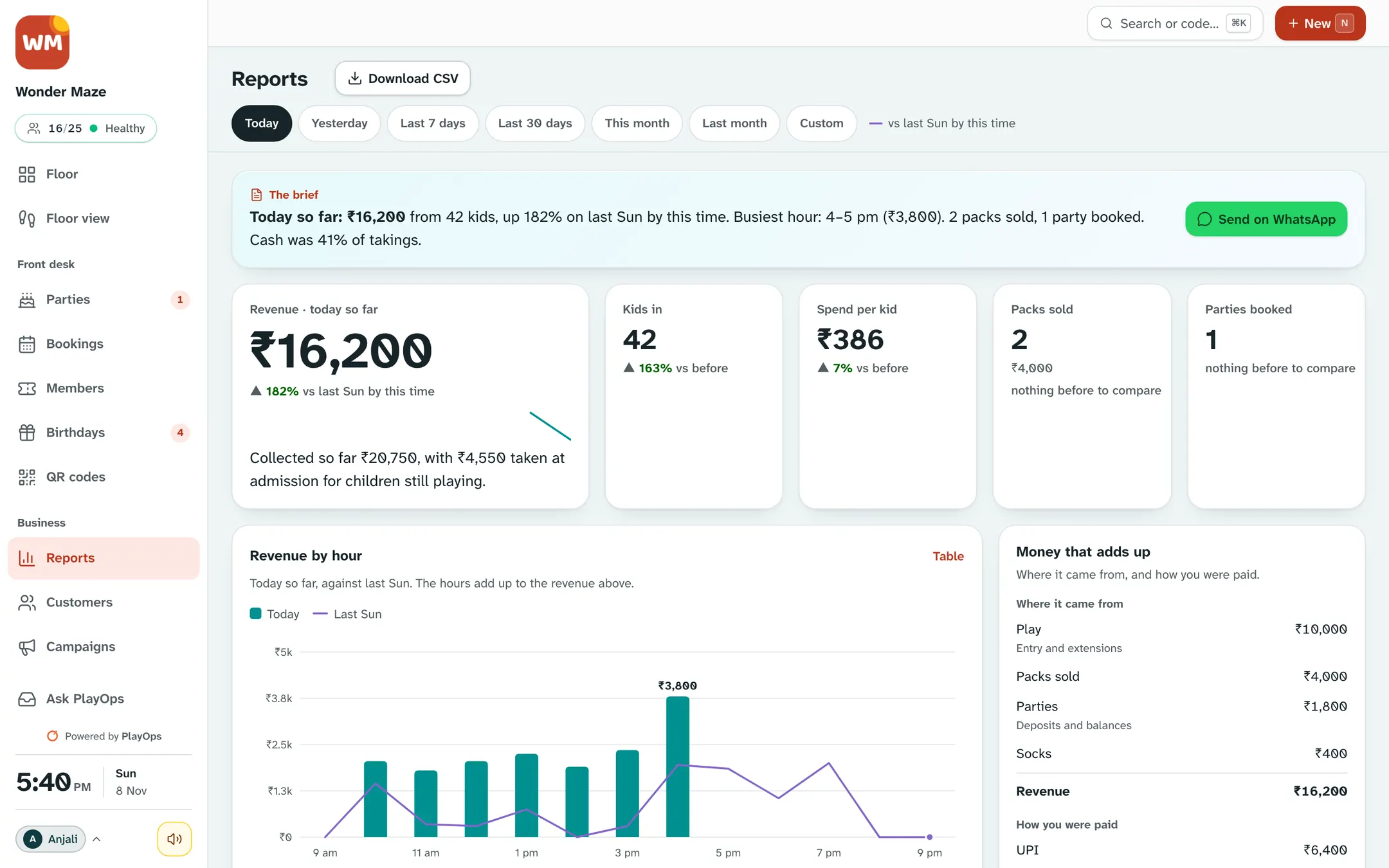
Close the day in one minute
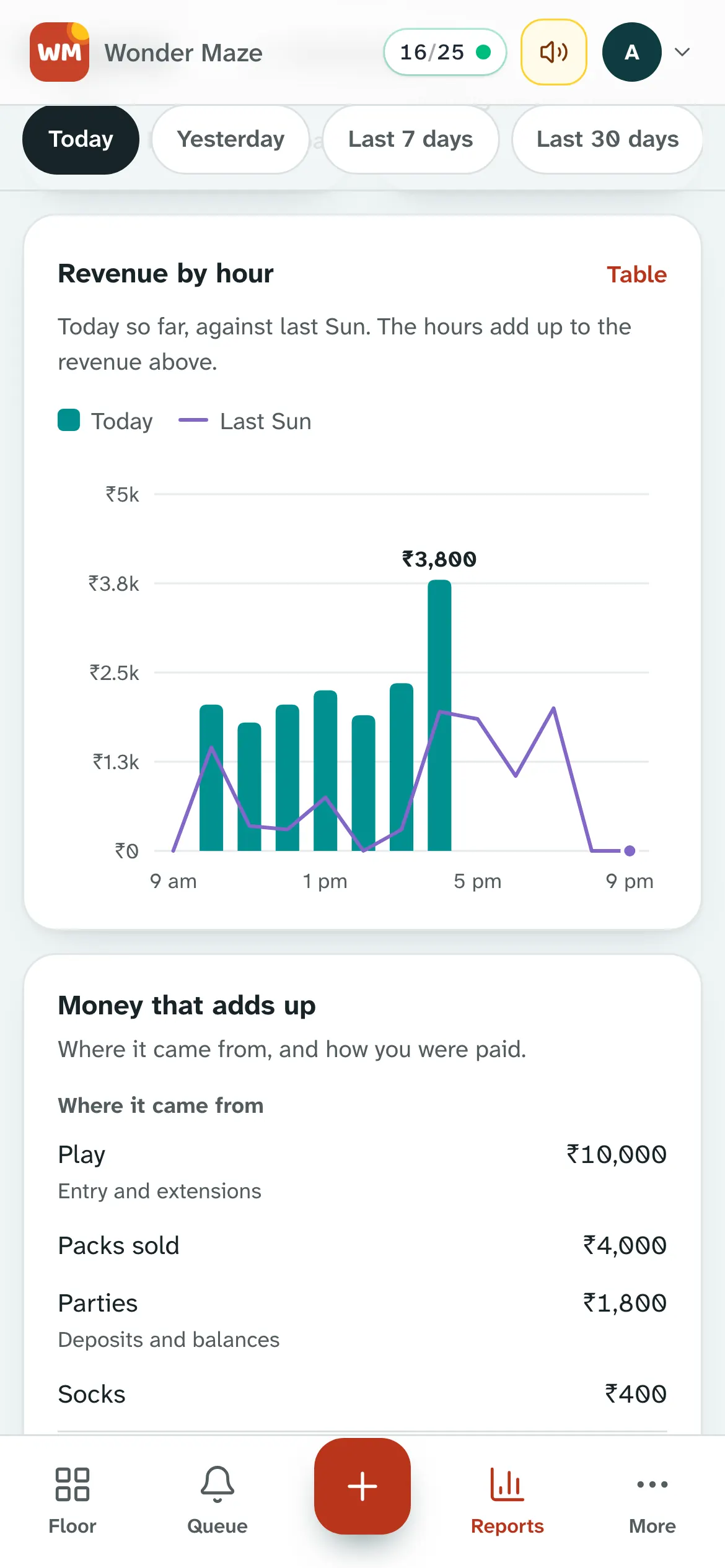
The day-end report shows sales by payment method, so the cash drawer check takes a minute, not ten. Every sale is saved, and the whole month exports as a CSV for your accountant.


Also on PlayOps
- Memberships and prepaid passes — hours come off the pass on each visit.
- Birthday parties — packages, the guest count and the party checklist.
- QR check-in with a waiver (Growth plan) — parents fill in the form on their own phone.
- A separate login for each person at the desk.
What you need
A phone, tablet or PC with Chrome and internet. No new hardware — your wristbands, printer and payment QR stay the same. Setup is a few questions about your prices, about 3 minutes on your phone.